
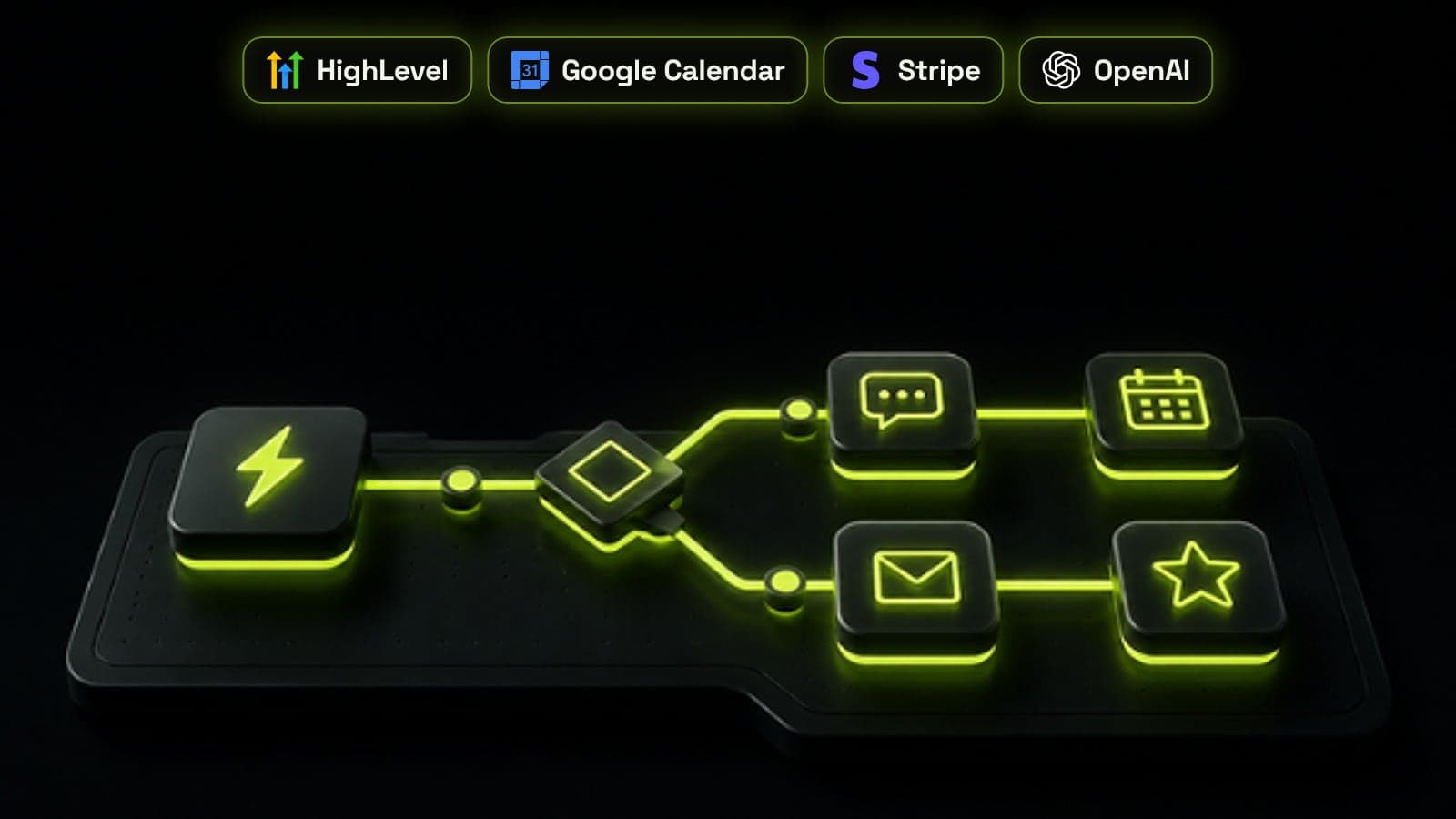
A GoHighLevel workflow is an automation that starts from a trigger, such as a form being submitted or an appointment being booked, and then runs a series of actions, such as sending a text, creating an opportunity or assigning a task. The ten workflows most service businesses should build first are speed to lead, missed call text back, appointment reminders, no-show recovery, pipeline stage tasks, won-deal onboarding, review requests, stale deal alerts, long-term nurture and invoice reminders. Build them in that order, switch on the right workflow settings, and test each one with a test contact before you publish it.
How GoHighLevel workflows work
Every workflow has two parts. A trigger decides when a contact enters, and actions decide what happens next. HighLevel groups its triggers by area: contact triggers such as Contact Created and Contact Tag, contact actions such as Form Submitted and Customer Replied, appointment triggers such as Customer Booked Appointment and Appointment Status, opportunity triggers such as Pipeline Stage Changed, Opportunity Status Changed and Stale Opportunities, plus call, email, payment and Facebook lead form events.
You can add filters to a trigger, add more than one trigger to the same workflow, and split contacts down different paths with If/Else conditions. The workflow builder also offers three starting points: build with AI from a description, start from a pre-built template, or create a workflow from scratch. Whichever you choose, nothing runs until you publish it.
1. Speed to lead
This is the workflow that pays for the rest. The trigger is Form Submitted, Facebook Lead Form Submitted or both, filtered to your main enquiry forms. The actions create an opportunity in the first stage of your pipeline, assign the contact to a salesperson, send a text and an email within a minute, and notify the owner by app notification or text.
Use the Assign to User action with traffic split across the team if more than one person takes leads. Then add an If/Else branch or a Goal Event that removes the contact once they reply or book, so they never get a chase message after they have already responded. Our guide to lead routing and speed to lead explains why the first five minutes matter so much.
- Trigger: Form Submitted or Facebook Lead Form Submitted
- Create or update opportunity in the first pipeline stage
- Assign to User, splitting traffic across the sales team
- Send SMS and Send Email straight away, then an internal notification
- Goal Event: Appointment Status booked or User Replied ends the chase
2. Missed call text back
When a call goes unanswered, most callers ring the next business on the list. A missed call text back workflow uses the Call Status trigger, filtered to missed or unanswered inbound calls, and sends a short text within seconds that apologises, asks how you can help and includes a booking link.
Add an internal notification so someone calls back during business hours, and tag the contact so you can report on how many missed calls turned into bookings. For businesses that miss many calls out of hours, an AI voice agent or GoHighLevel's own AI Employee can answer the call instead of just texting back.
3. Appointment confirmation and reminders
Trigger this workflow on Customer Booked Appointment for the calendars that matter. Send a confirmation by text and email straight away, then use Wait steps timed relative to the appointment to send reminders, usually one the day before and one about two hours before. Include the address or meeting link and a way to reschedule in every message.
Reminders are the cheapest way to raise your show rate, and they need almost no maintenance once built. If a contact reschedules, the appointment trigger fires again, which is one reason HighLevel always allows re-entry for appointment-triggered workflows.
4. No-show recovery
Use the Appointment Status trigger filtered to no-show. Send a friendly text with a rebooking link within the hour, follow up the next day by email, and create a task for the owner to call if the contact has still not rebooked after two days. Move the opportunity to a no-show stage so the pipeline shows the true picture.
Keep the tone helpful rather than chasing. People miss appointments for ordinary reasons, and a quick, easy way to rebook recovers a large share of them.
5. Pipeline stage tasks and alerts
The Pipeline Stage Changed trigger lets the pipeline drive the work. When a deal reaches Proposal sent, create a follow-up task for three days later. When it reaches Negotiation, notify the manager. When it moves to Closed lost, ask the owner for a lost reason. Each stage gets a small, specific workflow rather than one huge workflow that tries to cover them all.
This only works if the stages themselves are clear. Our guide to CRM pipeline stages shows how to define stages around what the buyer did, so stage-based automation fires at the right moments.
6. Won deal onboarding
Trigger on Opportunity Status Changed to won. Send a welcome email with next steps, create the onboarding tasks for your delivery team, add the client to any membership or portal they need, and tag them as a customer so they leave every sales nurture.
This is also the moment to stop sales messages. A contact who has just paid and then receives a sales follow-up loses trust quickly, so make sure your sales workflows use goals or If/Else checks that look for the customer tag.
7. Review requests
Trigger on Opportunity Status Changed to won, or on Appointment Status showed for appointment-based businesses, then wait until the job is done and use the Send Review Request action. Follow up once if the contact has not clicked, and use the Review Request Clicked goal so people who already left a review are not asked again.
Never offer discounts or gifts for reviews and never send requests only to customers you expect to be happy, because Google's policies prohibit both. A steady flow of reviews is one of the strongest local ranking signals, as our Google Business Profile checklist explains.
8. Stale deal alerts
Deals that sit untouched are the ones that quietly die. The Stale Opportunities trigger fires when an opportunity has had no activity for the number of days you choose. Create a task for the owner, send them a notification, and if the deal stays stale for a second period, alert the manager.
Set different thresholds for different pipelines. A deal waiting on a signed proposal might go stale after five days, while a long B2B sale might reasonably sit for two weeks.
9. Long-term nurture
Not every lead is ready to buy now. Trigger a nurture workflow from a tag such as not ready or lost on timing, then send a useful email every two to four weeks for several months: a case study, a guide, a seasonal offer. Add a Goal Event for Appointment Status booked or Form Submitted so anyone who re-engages leaves the nurture and goes back to sales.
Keep the content genuinely helpful and the frequency modest. The goal is to be the business they remember when the timing is right, not to fill their inbox.
10. Invoice and payment reminders
Use the Invoice trigger to send a reminder a few days before an invoice is due, on the due date and a few days after if it is still unpaid, then create a task for someone to call. Stop the sequence as soon as the invoice is paid.
For retainers, combine this with a failed payment alert so the account owner hears about a declined card before the client does.
The workflow settings that prevent mistakes
Most broken GoHighLevel automations are not broken actions but missing settings. Check the Settings tab on every workflow before publishing it.
- Allow Re-entry: lets a contact go through the workflow again after finishing it; leave it off for one-time sequences such as onboarding
- Stop on Response: removes a contact as soon as they reply to a message from the workflow; switch it on for sales chasers
- Time Window: holds texts, emails and calls until your chosen hours and days so nobody gets a text at 3am
- Timezone: choose the contact's time zone when you sell across regions
- Allow Multiple Opportunities: for opportunity triggers, lets a contact enter once per deal rather than once in total
What workflows cost to run
Standard triggers and actions are included in your HighLevel plan. Premium triggers and actions, marked with a crown icon, cost $0.01 per execution under HighLevel's workflow pricing guide, and actions that call external AI models such as the GPT action are billed by tokens instead. For most small businesses these costs are a few dollars a month, but a busy inbound webhook or AI step on every contact can add up, so check usage after the first month. Our GoHighLevel pricing guide covers the plan costs and other usage fees.
If you build the same workflows for several clients, package them into a snapshot so every new sub-account starts with them. When a process needs tools outside HighLevel, such as a database or a complex API, a webhook into n8n is often cleaner than forcing it into the workflow builder.
Frequently asked questions
What is a workflow in GoHighLevel?
A workflow is an automation that starts when a trigger happens, such as a form submission or a booked appointment, and then runs a series of actions, such as sending a text, creating an opportunity or assigning a task. Workflows can include waits, If/Else branches and goals.
Which GoHighLevel workflows should I build first?
Start with speed to lead, missed call text back and appointment reminders, because they have the biggest effect on bookings for the least work. Then add no-show recovery, pipeline stage tasks, review requests and stale deal alerts.
What is the difference between a trigger and an action in GoHighLevel?
A trigger is the event that puts a contact into a workflow, such as Form Submitted or Pipeline Stage Changed. An action is a step the workflow takes after that, such as Send SMS, Add Tag or Create Opportunity.
What does Allow Re-entry do in a GoHighLevel workflow?
It lets a contact go through the same workflow again after they have finished it or been removed. Contacts still cannot enter twice while they are active in it, and workflows triggered by appointments or invoices always allow re-entry.
Do GoHighLevel workflows cost extra?
Standard triggers and actions are included in the plan. Premium triggers and actions cost $0.01 per execution, and actions that use external AI models are billed by tokens. Most small businesses spend a few dollars a month on these.
Can I copy GoHighLevel workflows to another account?
Yes. Package the workflow, with the forms, calendars and pipelines it uses, in a snapshot and load that into the other sub-account. Contacts and their history are not copied, so you may need to reconnect calendars, forms and custom fields after loading it.