
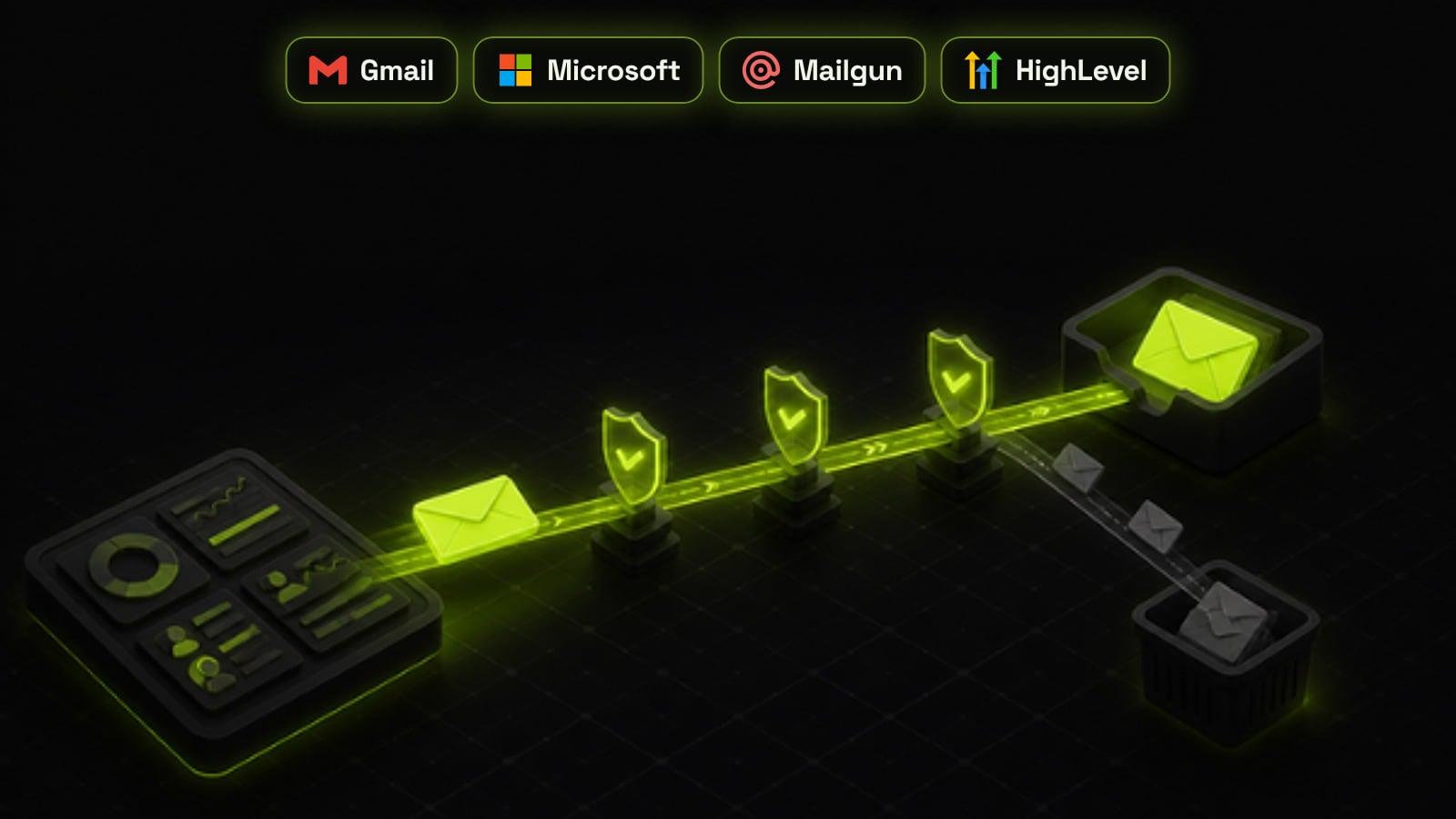
CRM emails land in spam when the sending domain is not authenticated, when the CRM sends from a shared domain, or when too many recipients ignore or report the messages. To fix it, send from your own subdomain, publish SPF, DKIM and a DMARC policy that align with the From address, add one-click unsubscribe to marketing email, warm up new domains slowly and keep your spam complaint rate below 0.1%. Gmail, Yahoo and Microsoft all require this from anyone sending 5,000 or more messages a day to their users, and since 2025 they reject non-compliant mail rather than just filtering it.
Why CRM emails end up in spam
Automation multiplies whatever is wrong with your email setup. A missing DNS record or a cold list hurts one manual email; in a workflow it hurts every speed-to-lead reply, appointment reminder and nurture message the CRM sends, often without anyone noticing for weeks.
The causes are almost always the same handful. Fix them in this order and most deliverability problems disappear.
- Sending from the CRM's shared default domain instead of your own authenticated domain
- Missing or broken SPF, DKIM or DMARC records, or records that do not align with the From address
- A brand-new domain sending hundreds of emails on day one with no warm-up
- Old, bought or scraped lists full of invalid addresses and people who never asked to hear from you
- No easy way to unsubscribe, so people press the spam button instead
The sender rules Gmail, Yahoo and Microsoft enforce
Gmail and Yahoo introduced shared sender requirements in February 2024, and Microsoft followed for Outlook.com, Hotmail and Live addresses on 5 May 2025. The rules apply most strictly to bulk senders, defined as anyone sending around 5,000 or more messages a day to that provider's users. Google counts all mail from the same primary domain together, and once a domain is classed as a bulk sender it keeps that status.
Enforcement has hardened. Microsoft rejects non-compliant mail from high-volume senders with a 550 5.7.515 error rather than sending it to junk, and in November 2025 Google said Gmail was ramping up enforcement, with non-compliant messages facing temporary and permanent rejections. Even if you send less than 5,000 a day, meeting the bulk rules is the safest baseline, because every provider rewards it.
- All senders: SPF or DKIM authentication, valid forward and reverse DNS, TLS, and a spam complaint rate below 0.3%
- Bulk senders: both SPF and DKIM, plus a DMARC record with at least p=none
- Alignment: the domain in the From address must match the domain that passed SPF or DKIM
- Marketing email: a one-click unsubscribe header, with requests honoured within two days
- Spam complaints: Google recommends staying below 0.1% and never reaching 0.3%
SPF: list who may send for your domain
SPF is a TXT record on your sending domain that lists the servers allowed to send email for it. When a message arrives, the receiving server checks the sender's IP against that list. Each domain can have only one SPF record, so if you use Google Workspace and a CRM, both have to be combined into a single record with an include for each service.
Watch the lookup limit. SPF allows a maximum of ten DNS lookups, and every include counts, so a record that has collected includes for old tools over the years can quietly break. Remove services you no longer use, and end the record with ~all or -all rather than leaving it open.
DKIM: sign every message
DKIM adds a cryptographic signature to each email, made with a private key held by your sending service. The matching public key sits in your DNS under a selector, and the receiving server uses it to confirm the message really came from your domain and was not changed on the way.
Your CRM or email provider generates the DKIM record for you; your job is to publish it exactly as given. Use a 2048-bit key where the provider offers one, and make sure the signing domain is your own domain, not the provider's, so it can align for DMARC.
DMARC: tell inboxes what to do with failures
DMARC ties SPF and DKIM to the address people actually see in the From line. A message passes DMARC when either SPF or DKIM passes and that domain aligns with the From domain. The DMARC record also tells receivers what to do with mail that fails, and where to send reports.
Roll it out in stages. Start with p=none and a rua address so you receive aggregate reports without blocking anything. Read the reports for a few weeks to find every service sending as your domain, fix the ones that fail, then move to p=quarantine and finally p=reject. That last step is what stops other people spoofing your domain.
- Week 1: publish v=DMARC1; p=none; rua=mailto:your-report-address
- Weeks 2 to 6: review reports and authenticate every legitimate sender
- Then: move to p=quarantine, starting with a percentage if your provider supports it
- Finally: p=reject once reports show only your own services sending
Set up a dedicated sending domain in your CRM
Most CRMs start you on a shared sending domain, which means your reputation is mixed with every other customer on the same platform. In GoHighLevel, mail sent from the shared domain has its sending address rewritten onto HighLevel's own domain, which looks odd to recipients and gives you no control over reputation. A dedicated sending domain fixes both.
Use a subdomain reserved only for CRM email, such as mg.yourbrand.com or mail.yourbrand.com, so marketing traffic never affects the reputation of the main domain your team uses for everyday email. HighLevel can add the DNS records automatically or give you the values to add by hand, and HubSpot, Zoho and most other CRMs follow the same pattern. If you are setting up a new account, add this to your GoHighLevel agency setup checklist before any workflow sends its first email.
Warm up a new domain before you automate
A new sending domain has no reputation, and inbox providers treat sudden volume from an unknown domain as suspicious. Start by sending a few dozen to a few hundred emails a day to your most engaged contacts, the people who opened or replied recently, and increase volume gradually over several weeks while watching bounces and complaints.
This is why we switch on high-volume nurture sequences last when building CRM automation workflows. Speed-to-lead replies and appointment reminders go to people who just asked to hear from you, so they build reputation. A cold reactivation blast on day one destroys it.
Unsubscribes and list hygiene
One-click unsubscribe means adding a List-Unsubscribe header, defined in RFC 8058, so Gmail and Yahoo can show an unsubscribe button next to the sender name. Most CRMs add it automatically to marketing email once a dedicated domain is connected; check a test message's headers to be sure. Transactional messages such as receipts and password resets do not need it.
Then keep the list clean. Remove hard bounces immediately, stop emailing contacts who have not opened or clicked in six to twelve months, and never import bought lists. A CRM audit before automating usually finds thousands of stale contacts that are dragging down reputation for everyone else.
- Use double opt-in on forms that feed nurture sequences
- Suppress hard bounces and spam complainers automatically
- Sunset contacts with no engagement in six to twelve months
- Send marketing and transactional email from separate subdomains if volume is high
Monitor deliverability every week
You cannot fix what you do not measure. Google Postmaster Tools shows your Gmail spam complaint rate and authentication results, and is the only place to see the rate Google uses for its 0.1% and 0.3% thresholds. DMARC aggregate reports show every service sending as your domain and whether it passes. Microsoft's Smart Network Data Services gives similar data for Outlook traffic.
Inside the CRM, watch open, bounce and complaint rates per workflow rather than in total. A single workflow sending to a bad segment can hide behind good averages. If you already track pipeline stages and lead sources, as in our guide to lead scoring in your CRM, add deliverability to the same weekly review.
Email deliverability checklist
Work through this list once for every domain your CRM sends from, then recheck it whenever you add a new tool that sends email for you.
- Dedicated sending subdomain connected in the CRM
- One SPF record with ten lookups or fewer, including the CRM's sending service
- DKIM published and signing with your own domain
- DMARC published, starting at p=none with reports, moving towards p=reject
- From address aligned with the SPF or DKIM domain
- One-click unsubscribe on all marketing email, honoured within two days
- New domains warmed up gradually on engaged contacts
- Spam complaint rate below 0.1% in Google Postmaster Tools
Frequently asked questions
Why are my CRM emails going to spam?
The most common reasons are sending from the CRM's shared default domain, missing or misaligned SPF, DKIM or DMARC records, a new domain sending too much too soon, and old or bought lists that cause bounces and spam complaints. Connecting your own authenticated subdomain and cleaning the list fixes most cases.
Do I need SPF, DKIM and DMARC?
If you send 5,000 or more emails a day to Gmail, Yahoo or Outlook users, all three are required, and the From domain must align with SPF or DKIM. Smaller senders only strictly need SPF or DKIM, but setting up all three is the safest choice because providers trust authenticated mail more and DMARC stops others spoofing your domain.
What DMARC policy should I start with?
Start with p=none and a reporting address, so you collect reports without blocking any mail. Once the reports show that every legitimate service sending as your domain passes, move to p=quarantine and then p=reject.
What is a good spam complaint rate?
Google recommends keeping your user-reported spam rate below 0.1% and never letting it reach 0.3%. Yahoo also sets 0.3% as the limit. You can see your Gmail rate in Google Postmaster Tools.
Should I use a subdomain for CRM email?
Yes. Sending marketing and automated email from a dedicated subdomain such as mg.yourbrand.com keeps its reputation separate from the main domain your team uses for everyday email. If a campaign causes complaints, your staff's inbox delivery is not affected.
How long does it take to warm up a new sending domain?
Plan for several weeks. Start with a few dozen to a few hundred emails a day to your most engaged contacts and increase gradually while bounce and complaint rates stay low. Avoid sending large campaigns or reactivation emails until the domain has a steady sending history.
Sources
- Email sender guidelines FAQ, Google Workspace Admin Help
- Sender best practices, Yahoo Sender Hub
- Strengthening email ecosystem: Outlook's new requirements for high-volume senders, Microsoft Tech Community
- Dedicated email sending domains overview and setup, HighLevel Support Portal