
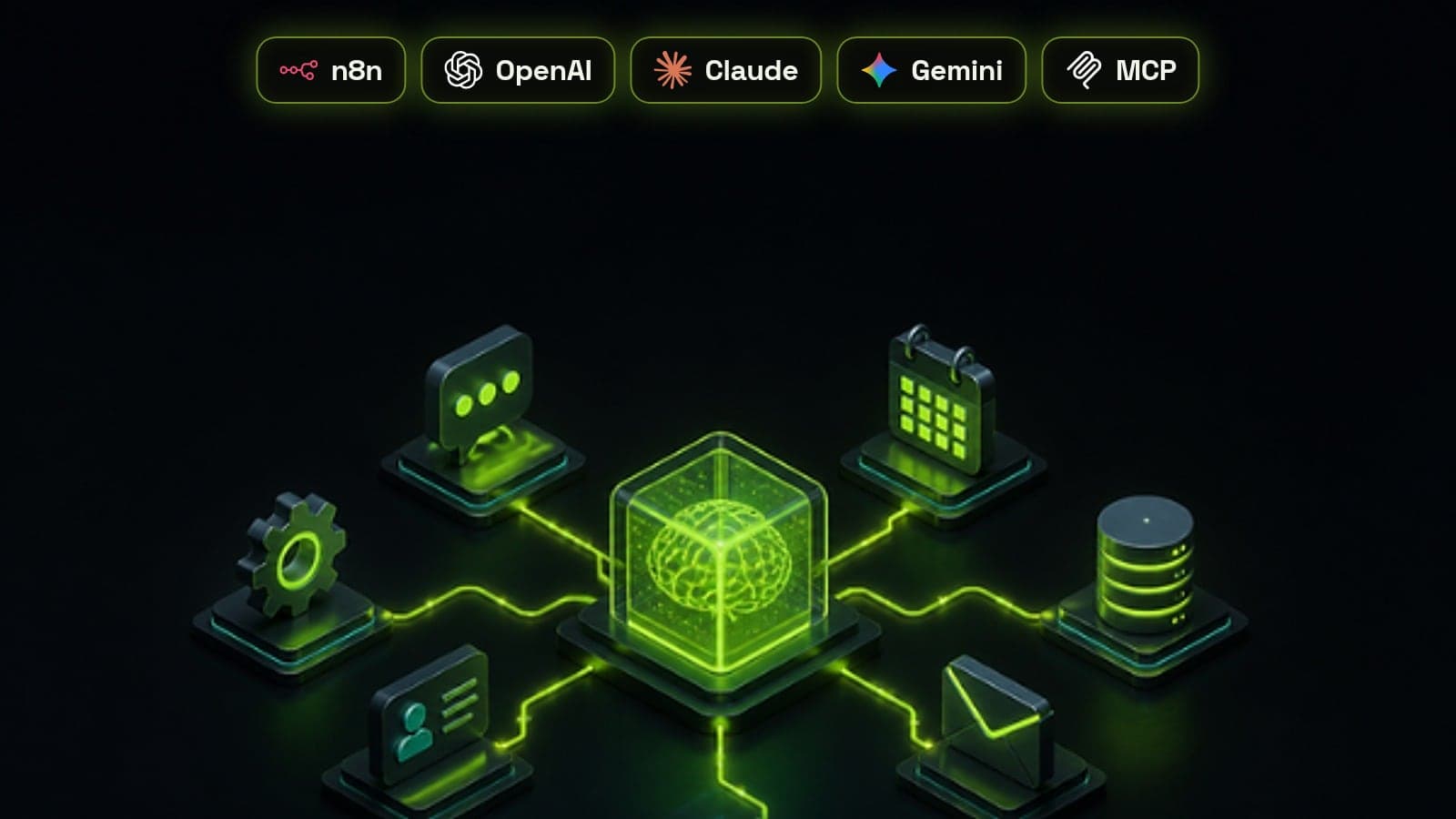
To build an AI agent with n8n, give it one narrow job, start the workflow with a trigger, add the AI Agent node with a chat model and a clear system message, then connect a small number of tools it can call, such as your CRM, calendar or an HTTP request. Add memory only if the agent needs earlier messages, ask for structured output so the next nodes can act on its decision, and put a human review step in front of any tool that emails customers, changes records or spends money. Most agents that fail in production fail on scope and guardrails rather than on the model, so this guide spends as much time on those as on the build itself.
What an n8n AI agent actually is
The AI Agent node is a loop. A chat model reads the input and its instructions, decides whether it needs a tool, n8n runs that tool and hands the result back, and the loop repeats until the model answers without asking for another tool or hits the iteration limit. Everything else, from memory to output parsers, plugs into that loop.
Since n8n 1.82 every AI Agent node works as a Tools Agent, and the node needs at least one tool connected. If you only want a model to summarise or rewrite text with no tools, the simpler Basic LLM Chain node is the better fit.
- Chat model: required. OpenAI, Anthropic Claude, Google Gemini, Mistral and local models through Ollama all work
- Tools: the actions the agent may take, from n8n's built-in app nodes to HTTP requests, sub-workflows and MCP servers
- Memory: optional. Without it, every run starts with no knowledge of earlier messages
- Output parser: optional, but needed when another node has to read the agent's answer reliably
First decide whether you need an agent at all
An agent is worth its cost when the input is messy and the right next step depends on judgement, such as reading a free-text enquiry, checking the CRM and deciding whether to book a call. When the input is predictable and you can write the rules down in about ten minutes, a normal workflow with an If or Switch node is cheaper, faster and easier to debug.
Many good builds mix both: a fixed workflow handles the steps that never change and calls an agent only for the one decision that needs reasoning. We explain where that line sits in agentic AI vs AI automation.
Step 1: Pick one job and define what done looks like
Agents get unreliable as their job grows. Pick a single decision, such as qualifying a new website lead, answering pricing questions from your help docs or triaging support emails, and write down what a correct result looks like before you open n8n.
For a lead qualification agent, done might mean every new enquiry is scored hot, warm or cold with a one-sentence reason, hot leads get a booking link within five minutes and the CRM record is updated. That list becomes your system message, your output format and later your test cases. Our guide to AI agents for lead qualification goes deeper on scoring criteria.
Step 2: Add a trigger and the AI Agent node
While building, use the Chat Trigger so you can talk to the agent inside the editor. In production, swap it for the trigger that matches the job: a Form Trigger, a Webhook from your website, a CRM trigger such as a new contact in HubSpot or GoHighLevel, or an email trigger.
Add the AI Agent node, connect a chat model with your API credentials and open Options to write the System Message. A good system message names the role, the single job, the criteria for each decision, which tool to use when, what to do when information is missing and the exact output format. Keep it in plain language and test one change at a time.
Step 3: Give it a few tools with clear descriptions
Tools are where agents earn their keep and where most mistakes start. The model chooses a tool by its name and description, so a tool called Search contacts by email that returns only the fields the agent needs works far better than a generic HTTP request with no explanation.
Start with two or three tools and add more only when a test shows the agent needs them, because tool-calling accuracy drops as the list grows. For multi-step actions, build a sub-workflow and attach it with the Call n8n Workflow tool, so the agent makes one call while n8n handles the fixed steps behind it.
- CRM tools to look up and update contacts, deals and notes
- Google Calendar or your booking tool to check availability and create appointments
- HTTP Request for any API without a dedicated node
- MCP Client Tool to use tools from an MCP server, with bearer, header or OAuth2 authentication
- A knowledge base or vector store tool when the agent must answer from your own documents
Step 4: Add memory only where it helps
Memory lets the agent remember earlier messages in the same conversation. A chat assistant on your website needs it, while an agent that scores each new lead once does not, and leaving it out keeps runs cheaper and more predictable.
Simple Memory is fine for testing. For production, use Postgres Chat Memory or Redis Chat Memory so history survives restarts, set the session key to something stable such as the contact ID or phone number, and limit the context window to the last few exchanges so token costs do not grow with every message.
Step 5: Ask for structured output and route on it
A paragraph of prose is hard for the next node to act on. Turn on Require Specific Output Format, connect a Structured Output Parser and define the fields you need, for example score, reason, next_action and booking_needed.
After the agent, a Switch node routes on those fields: hot leads go to the booking and notification branch, warm leads into a nurture sequence and anything the agent marked unclear goes to a person. This keeps the agent responsible for the decision and n8n responsible for carrying it out the same way every time.
Step 6: Add guardrails before it touches customers
n8n now has human review for AI tool calls. In the agent's Tools panel you add a Human review step and connect the tools that need approval, and when the agent tries to use one the workflow pauses until someone approves or denies it. Approvals can go to Slack, Microsoft Teams, Telegram, Discord, WhatsApp Business Cloud, Gmail, Outlook, Google Chat or n8n Chat, and the message can show the tool name and the exact parameters the agent chose.
Use it for anything you cannot take back, such as sending a customer email, issuing a refund or changing a deal stage, and let read-only tools run freely. Then add the limits that stop a bad run from becoming an expensive one.
- Lower Max Iterations from the default of 10 to the fewest steps the job needs
- Set a monthly spending limit on the model provider's API key
- Attach an error workflow that alerts you in Slack or email when a run fails
- Protect production webhooks with authentication so strangers cannot trigger the agent
- Keep credentials in n8n's credential store, never pasted into prompts or Code nodes
Step 7: Test on real data, then keep measuring
Run the agent against twenty or thirty real past examples before it goes live, including the messy ones: blank fields, angry messages, enquiries in another language and people asking for things you do not offer. Fix the system message or tool descriptions for every wrong answer and rerun the whole set, because a fix for one case often breaks another.
n8n's Evaluations feature lets you keep those examples as a dataset and score each new version of the workflow against them. Once live, log every run with its input, decision and tool calls, and review a sample each week for the first month.
Example: a lead qualification agent connected to your CRM
This is the pattern we build most often for service businesses. It replies to new enquiries in minutes, books the good ones and keeps the CRM accurate without anyone copying details between tools. If you have not connected n8n to your CRM before, start with our guide to connecting a CRM with n8n.
- Trigger: a new form submission or new CRM contact
- Agent tools: look up the contact and company, check the calendar, read the service and pricing notes
- Output: score, reason, recommended next step and a draft reply
- Routing: hot leads get a booking link and an instant alert to sales, warm leads go into nurture, unclear ones go to a person
- Human review on the send email tool for the first few weeks, then only for edge cases
- CRM update: score, reason and source written back to the contact for reporting
What an n8n AI agent costs to run
There are two bills. On n8n Cloud, one full workflow run counts as one execution however many tool calls the agent makes inside it. Self-hosting the Community Edition has no execution limit, but you pay for the server and own the updates, backups and security, and it is covered by n8n's Sustainable Use License.
The second bill is the model provider, charged per token and not capped by n8n. A short triage run might use a couple of thousand tokens, while a research agent that calls many tools can use tens of thousands, so measure the tokens per run in testing, multiply by your expected volume and pick the smallest model that passes your tests. If you are still choosing a platform, our n8n vs Zapier vs Make comparison covers how each one prices AI workloads.
Frequently asked questions
Is n8n good for building AI agents?
Yes, for agents that need to act inside your business systems. The AI Agent node handles the reasoning loop, and n8n's app nodes, HTTP requests, sub-workflows and MCP support give it tools to work with. It suits teams that want visual workflows with the option to self-host and add code where needed.
Do I need to code to build an AI agent in n8n?
No. You can build a working agent with the visual editor, a chat model credential and built-in tool nodes. Some JavaScript or API knowledge helps when you connect tools without a dedicated node or reshape data between steps.
Which AI models can I use with the n8n AI Agent node?
The AI Agent node works with chat models from OpenAI, Anthropic Claude, Google Gemini, Mistral and others, plus local models through Ollama. Pick the smallest model that passes your test cases, because larger models cost more per run without always making better decisions on narrow jobs.
What is the difference between the AI Agent node and the Basic LLM Chain in n8n?
The AI Agent node can call tools, use memory and loop until it reaches an answer, and it needs at least one tool connected. The Basic LLM Chain sends a single prompt to a model and returns the result, which is simpler and cheaper for summarising, classifying or rewriting text.
Can n8n AI agents use MCP servers?
Yes. The MCP Client Tool lets an AI Agent use tools exposed by a Model Context Protocol server, with authentication options including bearer tokens, custom headers and OAuth2. n8n can also act as an MCP server itself through the MCP Server Trigger, so other AI tools can call your workflows.
How do I stop an n8n agent from taking the wrong action?
Give it a narrow job, a clear system message and only the tools it needs. Add a human review step to tools that email customers, change records or spend money, lower Max Iterations, and test it against real past examples before it goes live.